If you're in the Apple ecosystem, I recommend iCloud for syncing Obsidian. The free iCloud Drive allowance is 5GB, which is plenty to start with as long as you aren't using it for photos and other things.
To use it, choose iCloud when you create a vault on your iPhone or iPad. On a MacBook, open the vault you created from the iCloud Drive/Obsidian folder.
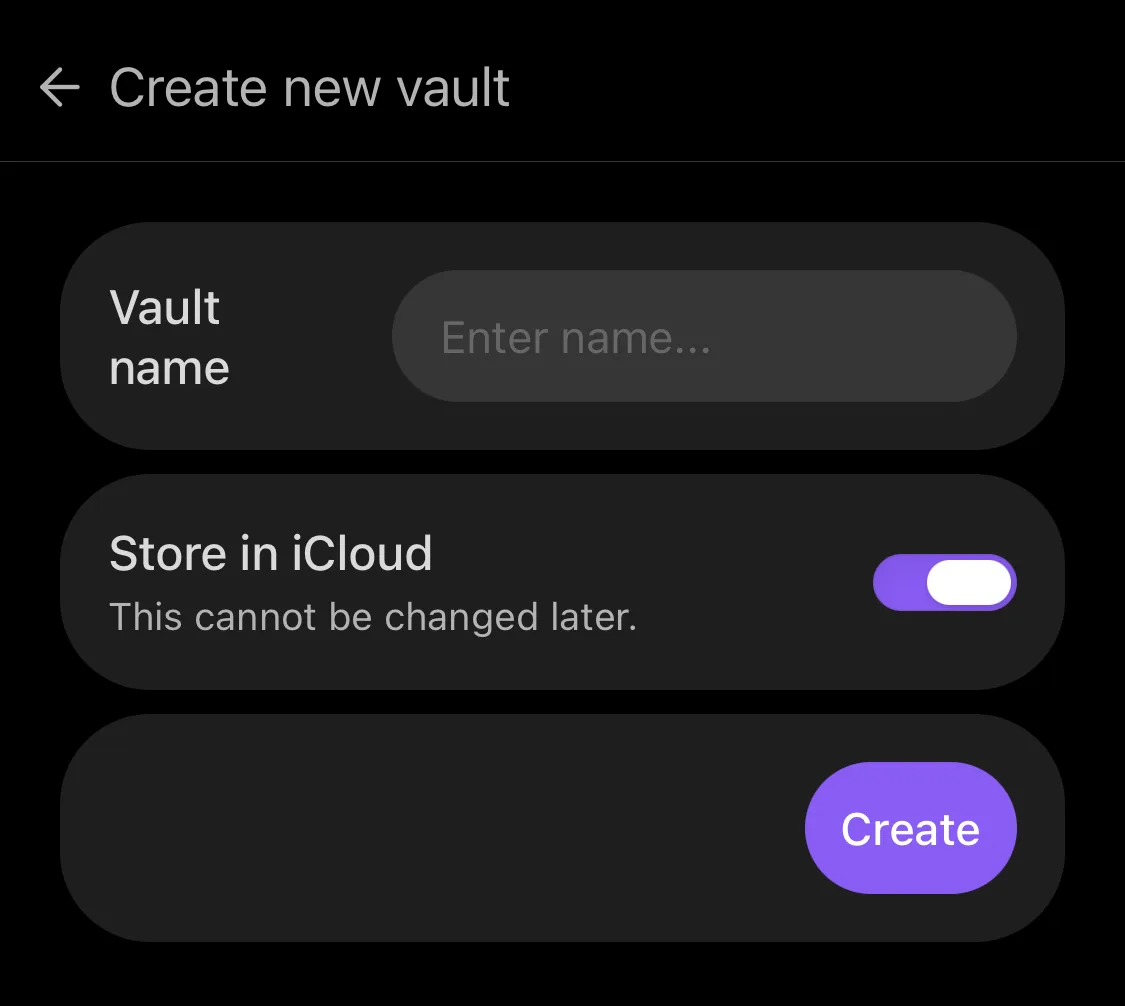
There is one more setting you need to change, though. Here is what it is.
Keep downloaded
There's a reason Obsidian is slow the first time you launch it on an iPhone (when the loading bar appears after the logo). When Obsidian launches, it loads every file in the vault. That is what makes its much-praised connectivity and fast search possible.
But iCloud Drive removes files you haven't used in a while from your device. So on launch, those removed files have to be downloaded again. This is one of the biggest reasons Obsidian starts slowly on an iPhone.
To solve this, there's the Keep downloaded feature that came with iOS 18. With it, once a file has been downloaded, it won't be removed even if you don't use it. As in the screenshot below, select the Obsidian vault in the Files app and enable Keep downloaded.
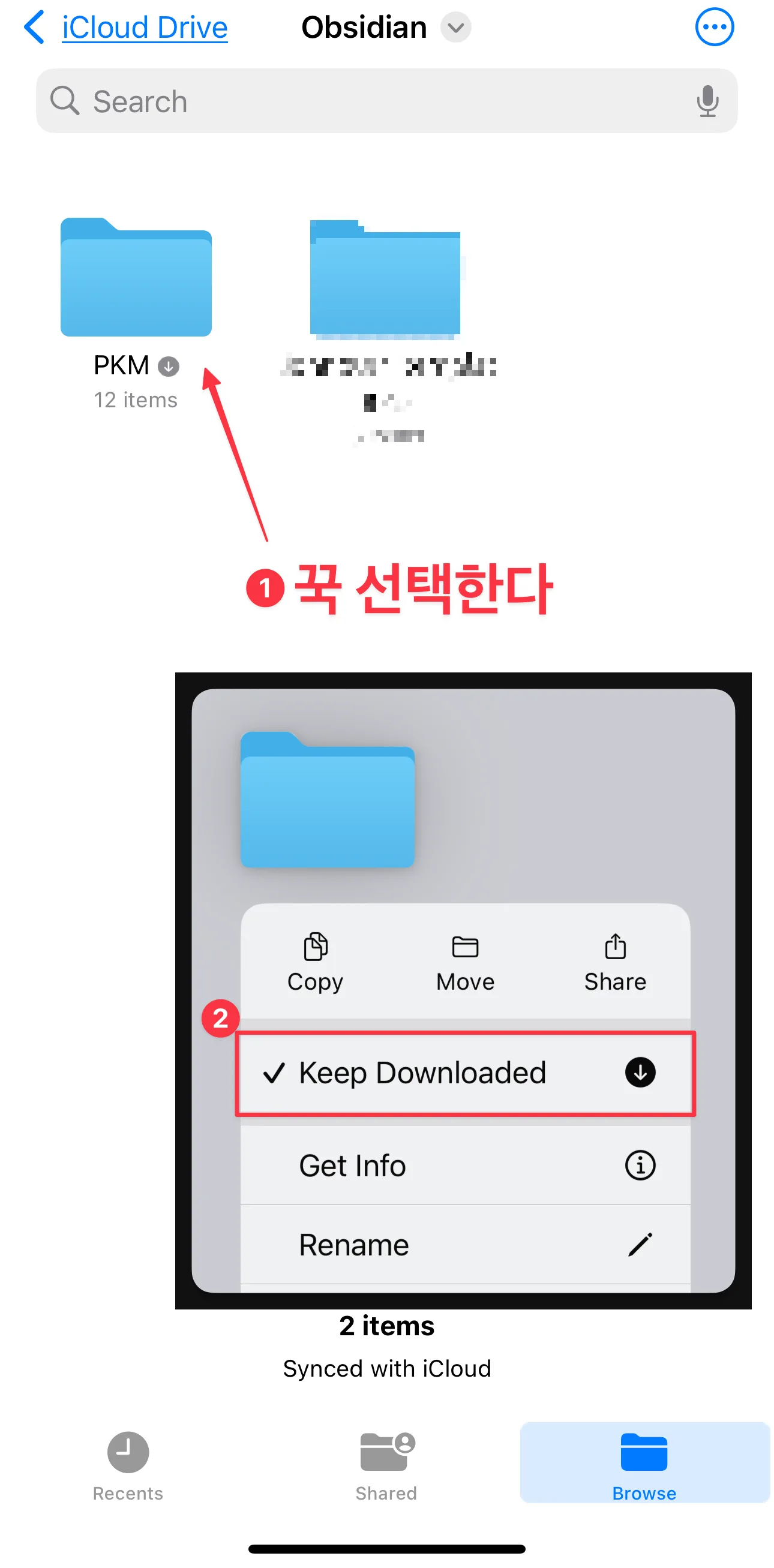
Likewise, enable Keep Downloaded on macOS and iPadOS too, and syncing will run more smoothly.