This post collects tips worth knowing when you use Obsidian on an iPhone. Despite the title, some of it also applies to iPadOS, macOS, and even Galaxy phones.
I used to find Obsidian awkward on the iPhone and rarely used it there, but lately it has been working very well for me.
If a note-taking app feels good on your phone, you will check your notes often, even while you're out and about. If it feels clumsy, you simply stop using it.
This post assumes you sync Obsidian through iCloud Drive. Since iOS 18, Keep download can cut the initial loading time considerably, so iCloud Drive now delivers satisfactory sync performance.
I won't cover the basic features here. This post is written on the assumption that you already have some experience using Obsidian on iOS.
Syncing Obsidian with iCloud on iPhone
For anything related to syncing, please see the note above.
Configure It Differently from Your PC
Mobile performance is almost always lower than PC performance. That means features that run without trouble on a PC can slow things down on mobile. So I recommend using different settings on PC and mobile. You can do this by keeping separate configs, as in the screenshot below.
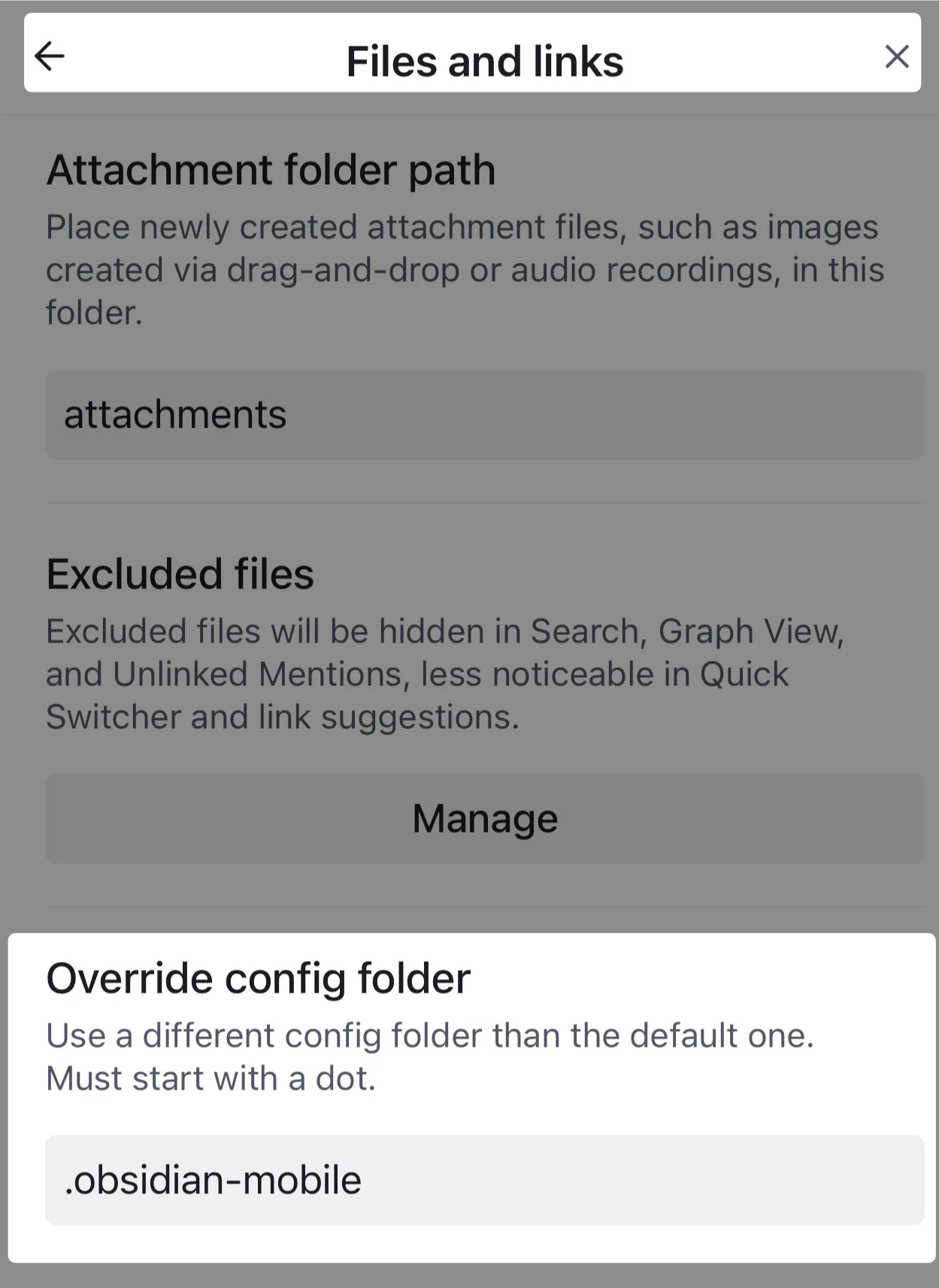
Once you've set up separate configs, I recommend going in the following direction.
- I recommend keeping the default theme. Surprisingly, a theme's CSS hurts performance quite a bit.
- Just as on PC, remove the community plugins you don't use on mobile. You will probably use fewer features on mobile than on PC. Let's focus on convenience for mobile.
Toolbar and Quick Actions
Just as there are features you rarely use on mobile, there are features you use often. It's a good idea to register these in the toolbar. Markdown in particular is hard to type on mobile, so putting it in the toolbar makes it much easier to use.
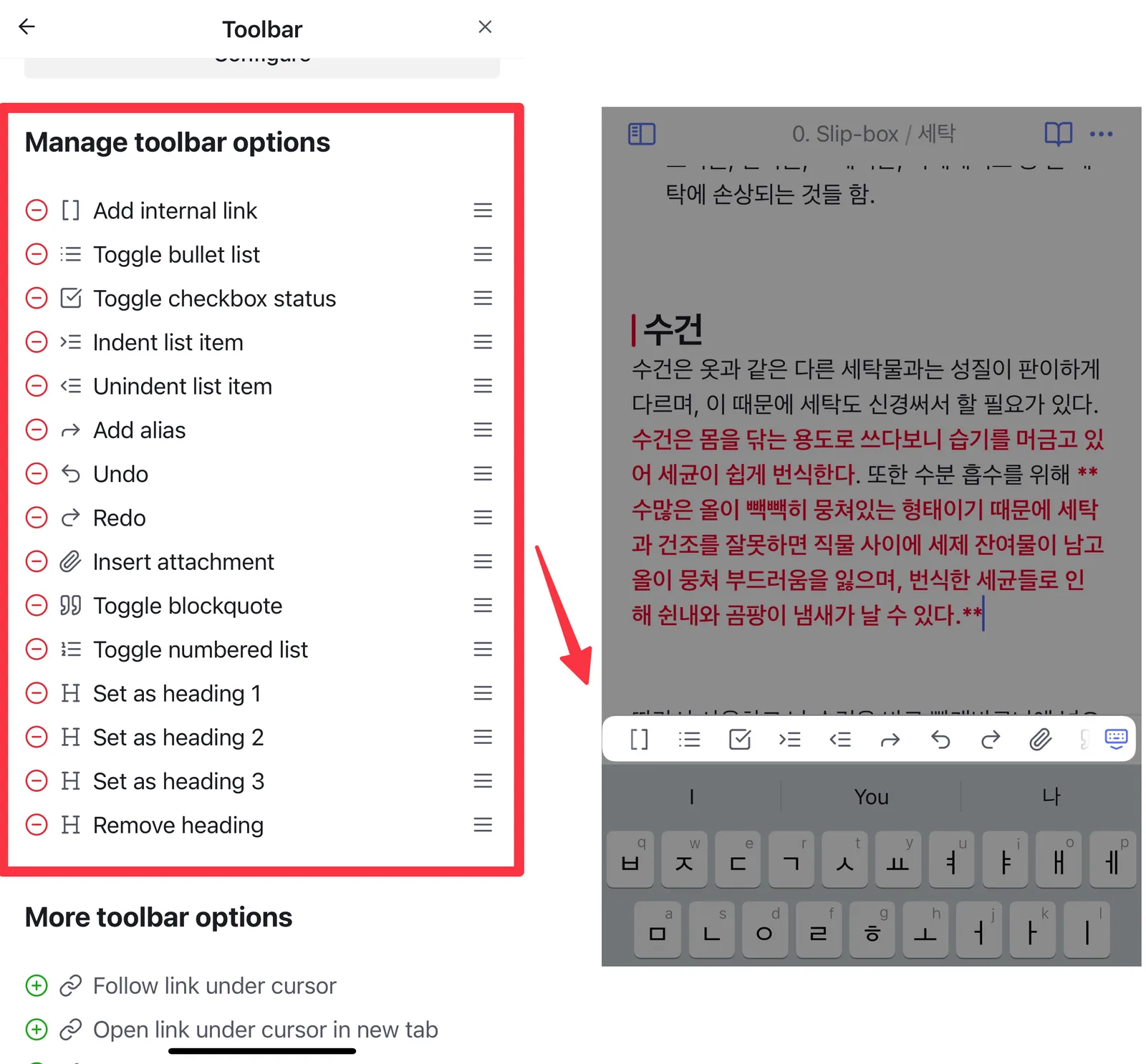
Another convenience feature on mobile is Quick action. I don't use it, though. I have a habit of constantly scrolling down, and every time I do, Quick action ends up triggering unintentionally. So I've disabled it.
By default, Quick action opens the command palette. On mobile you rarely do the kind of heavy work that calls for the command palette anyway, so it's better to turn it off. If you occasionally need the command palette, you can open it from the ribbon.
Getting Around Fast: Advanced URI
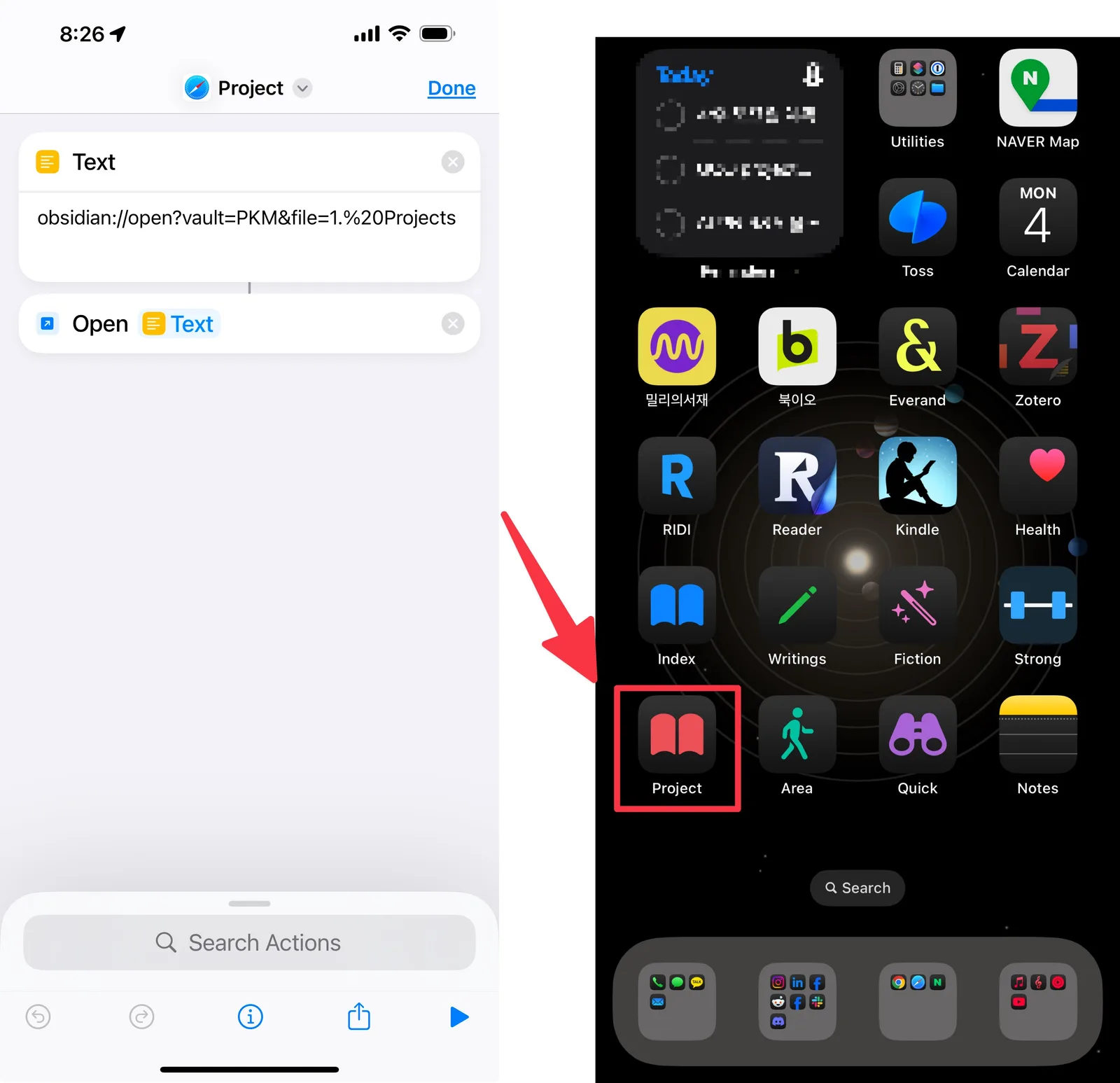
If there are notes you view or work on often, it's also a good idea to set them up so you can jump straight to them from your home screen. A note has to be easy to reach if you want to read and write in it often. The fewer unnecessary hurdles, the better.
One community plugin that's useful for this is Advanced URI. Advanced URI lets you run commands in Obsidian through a URI. Combine it with Apple Shortcuts, and you can jump straight to the note you want from your home screen.
With Advanced URI, you can open a note directly using obsidian://open?vault={볼트명}&file={노트명}.